.jpg)
How to Batch Remove Watermarks from Photos on Windows
Reuse one brush selection to remove the same watermark from multiple photos on Windows. Learn how to group images, review results, and export a batch locally.

Brush over an unwanted object or visible watermark. CleanFrame rebuilds the selected background on your own computer. Compare the result, or reuse one selection across a batch of matching photos.
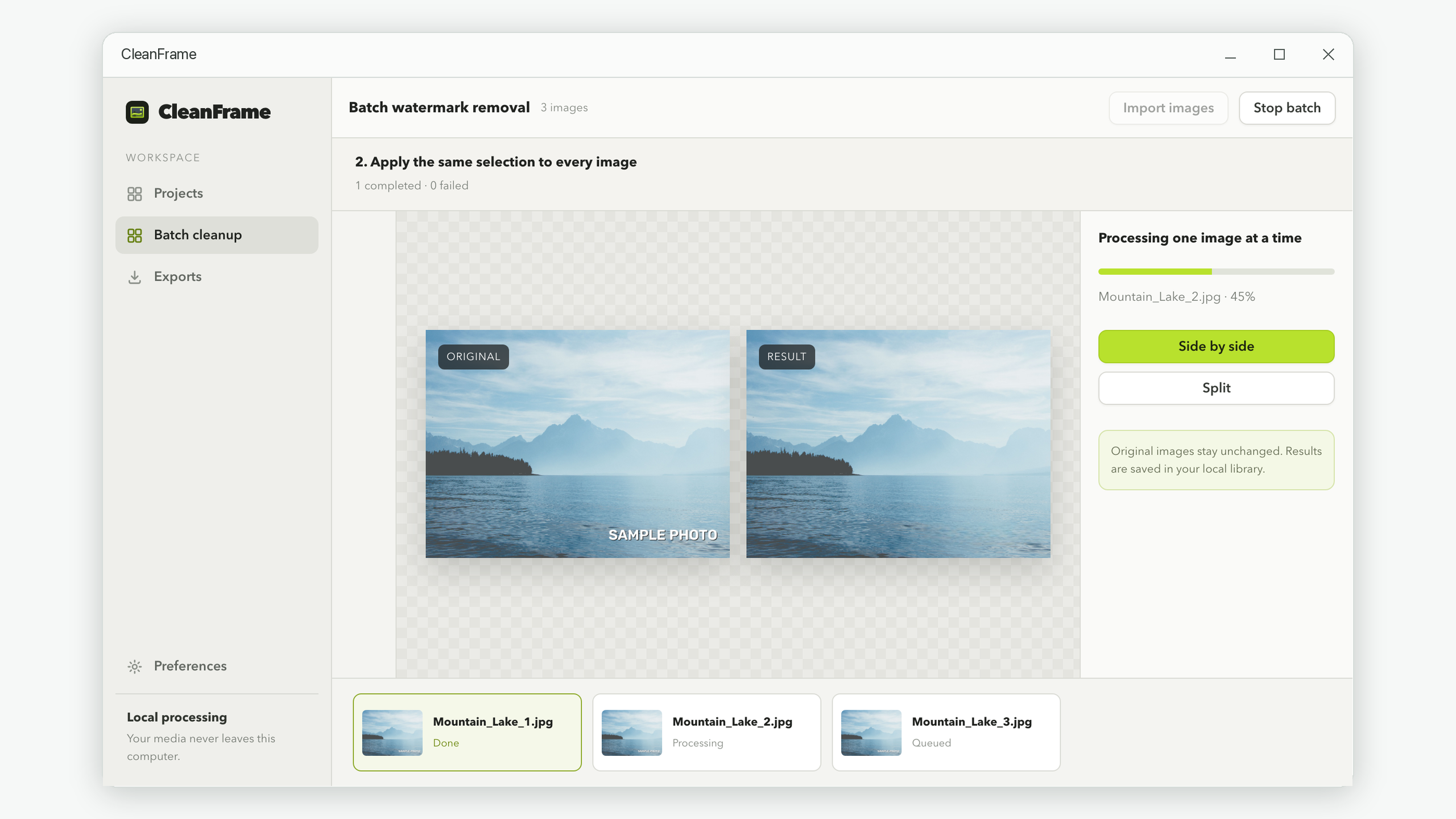
Actual app views: brushing a visible mark, comparing a cleanup, and processing a matching batch.
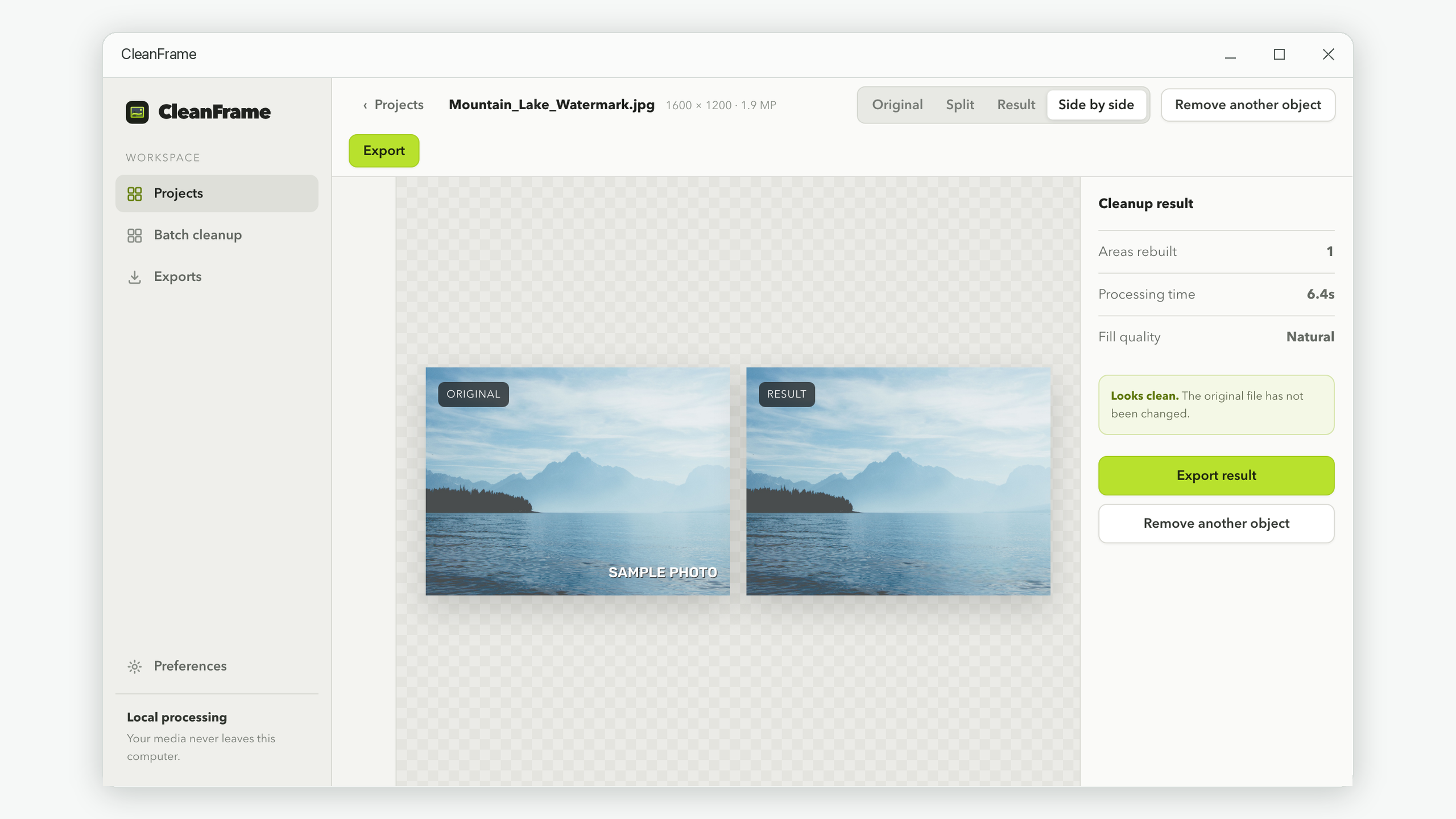
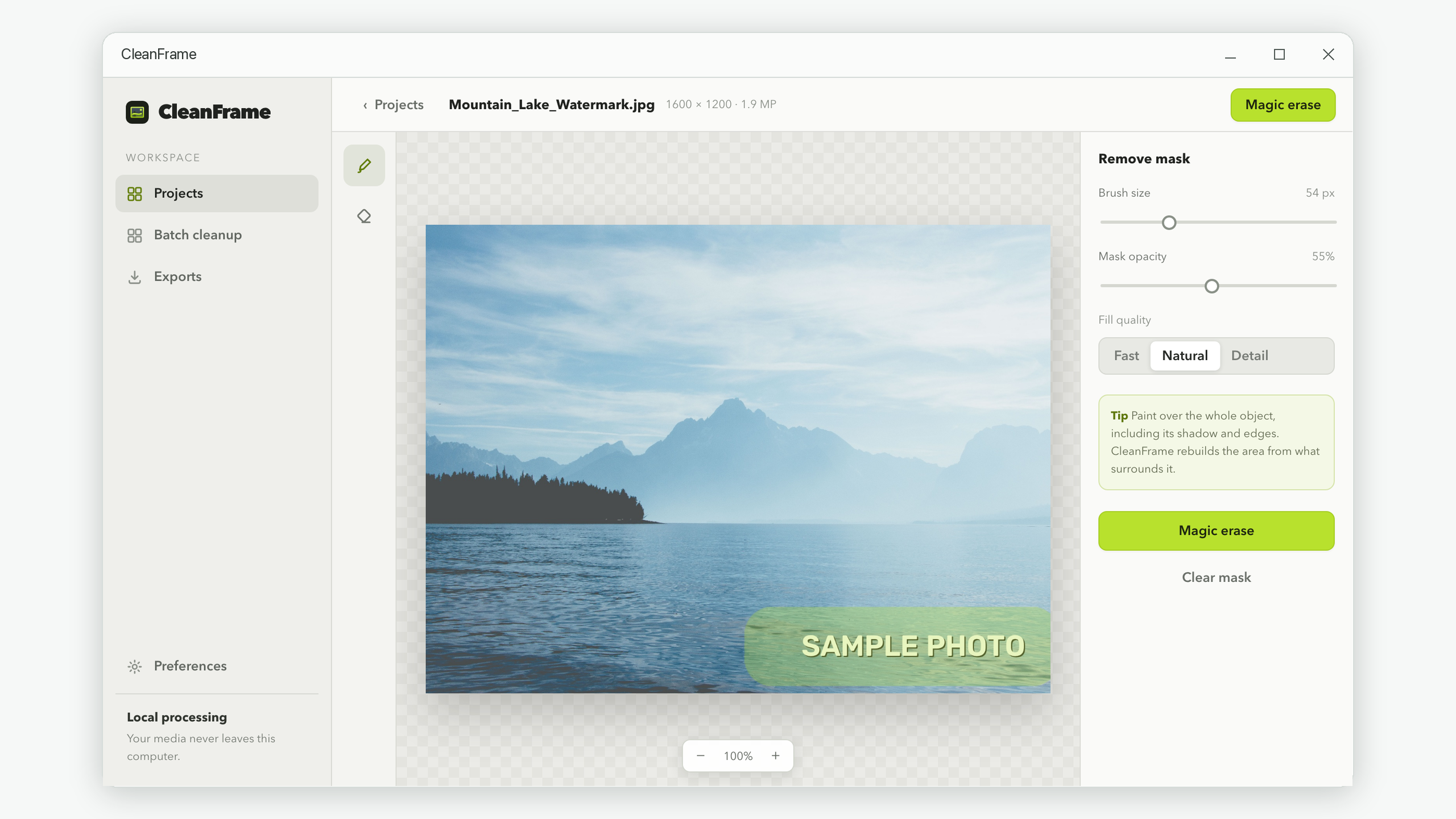
A single job, done properly: take the object out and make the gap look like it belongs.
A soft brush marks whatever should go. Resize it for fine edges or broad sweeps, erase to correct the mask, and mark several objects at once.
The selected area is filled using nearby texture, colour and structure. Check complex patterns, faces and lettering carefully before exporting.
Use the draggable Split view or Side by side comparison to inspect the original and the result before exporting.
Cleanup focuses on the selected area and its edges. The photo keeps its dimensions, and your original source file stays unchanged.
Import several photos, paint on the first image, and reuse that selection on matching layouts. Photos process one at a time; review the results before exporting.
Save as PNG, JPG or WebP into any folder. Your original file is never modified — the result is always written as a new file.
Three steps, no professional editing software to learn.
Drag a file into the window or pick one from disk. JPG, PNG, WebP, BMP, TIFF, HEIC and HEIF are supported.
Paint over whatever you want gone. Zoom in for precision, and use the eraser to correct your selection.
Press Magic erase, compare the result against the original, then save it in the format and folder you choose.
Anything else, write to support@iamdev.me.
No. All processing happens on your own computer. CleanFrame does not send your photos, or anything derived from them, to any server. There is no cloud component to the product at all.
Only to install the app from the Microsoft Store. After that CleanFrame works entirely offline — everything it needs to remove objects is installed with it.
No. There is no sign-up, no login and no account of any kind. CleanFrame does not collect your name, email address or any other personal information.
Never. The original file you import is left exactly as it was. Results are always written as new files, in the folder and format you pick when exporting.
You can import JPG, PNG, WebP, BMP, TIFF, HEIC and HEIF images, and export results as PNG, JPG or WebP. HEIC is an input format, not an export option.
No. CleanFrame is for still images only.
Usually a few seconds. It depends on your computer and on how large the area you painted is — removing a small object is quick even from a very large photo. The first removal after opening the app takes a little longer, because that is when the app prepares itself.
Yes. Batch cleanup reuses the selection painted on the first image, scaled to each photo's dimensions. Group images with a watermark in the same relative position; the app does not automatically detect it. Images process sequentially. Follow the batch tutorial.
English, Simplified Chinese, Traditional Chinese, Japanese, Korean, French, German, Spanish and Italian. On first launch it follows your Windows language, and you can change it at any time in Preferences.
Practical guides for batch watermarks, blurry patches, camera date stamps, and HEIC photos.
Reuse one brush selection to remove the same watermark from multiple photos on Windows. Learn how to group images, review results, and export a batch locally.
Fix blurry patches, leftover letters, and broken edges after removing a photo watermark. Learn better brush selection, quality checks, and export choices.
Remove a burned-in camera date or timestamp while keeping the full photo frame. Follow a local Windows workflow for selecting, checking, and exporting the result.
Import HEIC or HEIF photos directly into CleanFrame on Windows, remove unwanted objects locally, check orientation, and export the cleaned image as PNG, JPG, or WebP.